
Introduction
Measured by volume, this post will probably clock in around two parts slaphappy partial ebook formatting guide to one part tales of my experiences formatting my first ebook–which I hope might also be useful in a learning from others’ experiences kinda way.
Publishing The Twelve Tasks of the Enchanter of Linen was my first time formatting and converting an ebook. It was…difficult! It was difficult nearly the entire time…this time. Now that I understand the process, everything will go so much quicker and easier next time I format an ebook, and that’s exactly the kind of learning curve that entices a person to go talk about everything she learned.
I have set my sights on reading some ebook formatting books and creating a full ebook formatting guide someday. There aren’t many start-to-end guides outside of published books (and possibly even there?) The guide I link to here, David Gaughran’s “Formatting An Ebook: A Step-by-Step Guide,” was updated in 2023 and it’s the only free guide I know of that is entirely or almost entirely up to date. I will definitely be referring you to a published software guide or to Mr. Gaughran’s guide for the technical core of the process (creating your XHTML beginning boilerplate and selecting the proper conversation settings in Calibre or your software of choice). This slaphappy guide exists for people who have as much or less computer knowledge than I do and would like hear about some of the challenges and fiddly details of the process from start to finish as I experienced it.
In terms of emphasis, I’ll be talking about challenges I faced and tips for making your way through formatting an ebook with HTML and converting it in Calibre. Part of the intended utility of this post is to walk through “Okay, when something goes wrong, what are the steps to fixing it?”
What are we doing this in?
HTML stands for Hyper Text Markup Language, and it’s the bones of most webpages. If you’ve ever tinkered with programming for websites, at all, or used something like an “embed” code to add a video or link to a page, you’ve probably used HTML.
CSS stands for Cascading Style Sheets and it’s another, slightly fancier layer of programming language that works intimately with HTML (hey, this is a romance novel blog). It creates styles and formatting beyond what HTML alone can do.
You can download a free program called Notepad++ to edit your HTML and CSS. It’s similar to a plain text editor like Notepad, but it gives you line numbers (helpful when programming) and colorizes different components of your code (very helpful when programming). I hadn’t downloaded Notepad++ before so I looked it up just to be on the safe side, and as of September 2025 it is widely respected and considered entirely legitimate and safe.
Calibre is likewise a free, widely respected and safe program that turns your file of HTML into…an actual ebook. An EPUB file, in this case.
Coming in with experience…or not…or in between?
How much experience you have with aspects of the ebookification process (definitely a real word) is going to make a huge difference in how easily you get through it and how long it takes you. I say this NOT to discourage those of you with less computer experience (or worse, condescend to you). I find that what’s really discouraging is when every resource out there assumes that EVERYONE knows stuff you don’t know. I’m not necessarily the ideal middlewoman here since I do have a decent amount of entry-level programming experience, so I’m not going be the best at remembering what isn’t obvious when you’re starting out, but all of my experience is either basic or for specific technical jobs and not a regular personal computer, so when I’m trying to do something on my laptop I’m regularly reminded that I am not a personal computer power user. (People who know a lot about computers don’t say power user.)
My real Achilles heel as I began this process was that I never properly learned any CSS. (As you read this guide, you may notice problems this caused for me.)
If you are almost new to programming or HTML, I heartily recommend playing around for even an hour with one of the many “entry to coding” websites out there. You’ll get a sense of how writing a program works, and you’ll pick up some vocab that will be used by resources that expect you to already know the basics.
My best piece of general advice and personal Rule No. 1: Not anthropomorphizing the program. Since it isn’t an entity, it doesn’t have an intuitive sense of anything. “It” is only the sum of hundreds of instructions you gave the computer (that’s what a page of code is). If you use the italics tags to wrap text you want italicized, but you make the very common typo of leaving the second tag as another opening tag instead of a closing tag, “it” has no way of knowing that you made a typo and the second tag is supposed to close the italics. Everything letter of every word in the rest of the book will be italicized…because that’s what you unwittingly told it to do. This is what makes debugging difficult, but it’s also what makes debugging possible. There’s no mystery process–there’s nothing “under the hood of the car” that you don’t have access to.* You ARE under the hood. If you keep working on tracking down the problem (the bug) and changing things to figure out what the problem was, you’ll inevitably figure it out. That’s all there is to “debugging.”
*Using Calibre is the part of the ebook process that is a partial exception to this–it does change your HTML as part of making it into an ebook, and there are parts of a converted ebook that can’t be changed–but even in Calibre you can still open up that code editor and fiddle with most of it.
Formatting your book to read nicely as an ebook also means doing the conceptual part of formatting, and that means layout and design. I have experience doing layout and design, and that helped with the ebookification process. In indie publishing, having professional, legible layout and design is a big deal, and it can take a while to train your eye for that. (That’s my polite way of saying “I have seen people saying things look professional and legible when they really don’t look professional or legible.”) Even more than getting help on deck for the programming parts it might be a good idea seek out constructive criticism from someone who reads a lot. (Someone who won’t just say “Oh, it looks great! :)”)
Finally, if you don’t know ’em I will say the undo/copy/paste keyboard shortcuts are incredibly useful here: ‘CTRL + z’ is undo, ‘CTRL + y’ is redo, ‘CTRL + c’ is copy, ‘CTRL + x’ is cut, ‘CTRL + v’ is paste.)
Make it modular (save save save)
Saving a new version often as you go along is so nice. It’s SO nice, y’all. You can create your first test file, name it ebooktest, then change a few things, then save as ebooktest2, and so on.
This gives you more freedom to try things without having to wonder if you’re going to ruin something.
The best way to learn programming (some might say the only way?) is the old, “Try things and play around and experience the results.” Sometimes people with less experience with computers hesitate to just try things…BECAUSE THAT MAKES SENSE when you’re doing something new and you don’t have the experience to know what’s liable to catastrophically break something. Being cautious is adaptive behavior for the unfamiliar, but it can create a negative feedback loop for something like programming where the best way to become familiar is to try things with wild abandon.
If you have your actual book safely saved a few times on multiple devices (please have your actual book saved on multiple devices), and you periodically save new versions of your Notepad++ files as you go, when something breaks it will be easy to go back to the last version before things broke and figure out what went wrong. If something goes really wrong and you can’t figure it out, it’s nice to be able to open up a file that’s only a few steps back in time instead of going back to a very early file and replicating all your work up to that point.
Getting your manuscript ready for Notepad++ and sticking it in there
The very first thing you will need is an XHTML 1 DTD declaration boilerplate. What is that? To quote w3schools, XHTML is “a stricter, more XML-based version of HTML,” and a Document Type Definition (DTD) “defines the structure and the legal elements and attributes of an XML document.”
Great! Why boilerplate? That’s just what I’m calling it (boilerplate = default that can be reused without changes) because I’m piggybacking off Mr. Gaughran’s guide again; you’ll be borrowing your XHTML 1 DTD declaration from his template shell, which he apparently learned how to code from Guido Henkel’s book and 2010 blog posts, or from your published ebook resource of choice, unless you know more about XHTML than I do. In essence, the DTD declaration tells your ebook about this w3 page that has everything the ebook and the applications that read the ebook need to know about the ebook’s own code.
You also need the beginning sheet of CSS that declares all of your CSS styles. CSS style boilerplates for ebooks are easy to find online, but you can use Mr. Gaughran’s template shell since it has both the XHTML 1 DTD declaration and the CSS. (If you’re DIYing it, don’t forget the body tags!)
(I will also refer you to Mr. Gaughran’s guide and refer you if you need help cleaning up your Word document! I write in Notebook like a weirdo so I don’t need to do the step of cleaning up a Word file, although that does mean I need to go in and insert all my italics HTML tags manually.)
When you’re removing your formatting in Word, you don’t need to replace your quotes since everything is nicely wrapped in “Read me as text and not code!” paragraph tags, but m dashes and ellipses and other special characters are worth doing a find and replace on to make sure they show up correctly.
Now that you’re ready to being formatting in Notepad++, I heartily recommend doing an initial test, Notepad++ all the way to Calibre, with your frontmatter and one or two chapters so that there’s less text to deal with as you’re learning how it all works (I did this and I’m glad I did). There’s no reason that’s mandatory if you do want to start the process with your whole book from the go.
Save your Notepad++ file as .html, not .txt.
Formatting your Notepad++ file
To wrap all the lines of text in a file in paragraph tags all at once, which you will need to do for all the text in your book, copy the text into another Notepad++ file (modularity!) Open Find and Replace and check “Regular expressions” (this is what lets you put code into the fields instead of literal words to find and replace). Then put ^(.+)$ in the “Find” box and
<p>\1</p>in the “Replace” box.
Once you’ve put your manuscript into Notepad++ (inside the body tags after your DTD declaration lines and CSS styles), you are ready to begin adding HTML and CSS formatting to the body. When you do this part, what you are thinking about formatting is:
Title, copyright, and anything you want at the beginning like a content advisory, a list of characters, or an author’s note
The main text of the book
Backmatter, like a CTA like asking reader for a follow or review, as well as anything else like an author’s afterward or an ending page
(I have END BOOK ONE on an otherwise blank page between the end of the last chapter and advertising my newsletter).
You will need:
Page break:
<div style="page-break-before:always;"></div>Line break (put blank space between things; this looks like a closing HTML tag but it’s a standalone and there isn’t an open tag that goes with it):
</br>Headings and other styles of choice (this is DIY, although I did have to figure out a Calibre workaround once I Do It Yourselfed)
Chapter and NoIndent (these are in the CSS in Mr. Gaughren’s guide)
<p class="chapter"></p>

<p class="noindent"></p>
Every chapter needs a chapter tag. You also want a line break (and subheading style if you have a subheading) if you have a new section within a chapter.
Every start of a chapter as well as every start of a new section with a space above it needs a noindent tag (this is more professional than an indented paragraph at the beginning of a scene).
If you have in-story text–for example, a letter that a character opens for your reader to read–at minimum you want line breaks before and after, and you might want noindent, extra wide margins, or italics.
Save your Notepad++ file as .html, not .txt.
Because browsers can display HTML, you can right-click your Notepad++ file (as long as it is saved as .html, not .txt) and copy the file path, then open it in your browser to see how it’s lookin. This won’t display things like chapter breaks (it will be all one page), but you can check things like bolding and heading size and open italics tags that italicized the rest of the book.
Regular versus Normal
When I was on round two doing my file for my free chapters sample, I realized I hadn’t turned my dot-dot-dots into ellipses yet, so I merrily did a find and replace while I had Regular Expressions checked…which turned every single word and everything else in my Notepad++ file into the HTML ellipse expression. That’s because a period symbol . is the all/any wildcard when you’re using Regular Expressions.
Luckily, returning to the existence of a world before all was naught but HTML semicolon code was but a CTRL+Z away.
This is solvable without going all the way back to regular Notepad! You just need to go from “Regular expression” back to “Normal.”
Put that file in Calibre and convert to ebook
Once your HTML file is ready you’ll be converting it into an ebook in Calibre. Conversation settings are also above my current paygrade, so refer to your book or Mr. Gaughren’s guide on Calibre conversion settings! Once the file has converted, you can double click and read it. You should absolutely check your ebook in another program too, but this is fine for checking on formatting. My version of the Calibre reader duplicates each page, and I don’t know if that’s a setting I can turn off or not, but I knew it wasn’t about my ebook because I had used Calibre to read someone else’s ebook after I first downloaded Calibre and Calibre did the same thing to that book.
With your converted book selected (click on it in the list in the center of the main Calibre window; it will be highlighted once you’ve clicked on it), press the t key to open the code editor and fix what broke.*
In the code editor, everything you separated by a page break or the chapter tag has its own file (so there’s a different file for each chapter, but if you used that piece of page break code there’s also a file for your copyright page and title page and so on).
You can edit this code (see the section after next)…
…with the very important caveat that you AREN’T coding in your HTML anymore, you’re in Calibre’s version of HTML, as I learned to my chagrin when I blithely added regular breaks to adjust spacing and then arrived at:
Validating the EPUB
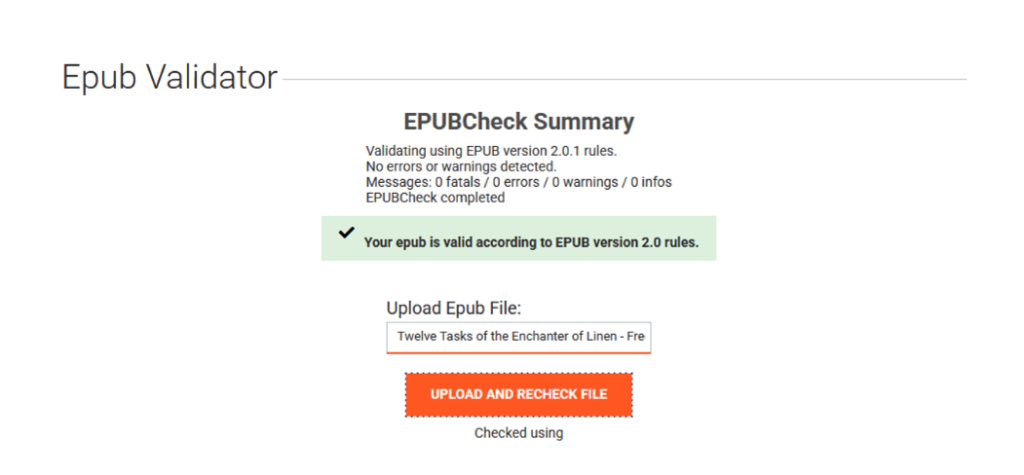
After fixing every visible issue (see next section), and getting my ebook so that it seemed completely formatted, I went to look for an ebook validator. I used the validator at Draft2Digital because it was the first thing that came up when I searched for an ebook validator, and I didn’t find anything vile about Draft2Digital in a quick Reddit search.
I uploaded my file and waited a few seconds. When the validator finished, it looked like this:

Very encouraging.
I spent a minute thinking I might have reached the end of my ability to do this on my own and was going to have to pay someone money to help me, but that was a total false alarm because when you click to expand and look at all the errors, the validator gives you the exact location of the code causing the error (those number,number are the line and column of the piece of code, just like graph coordinates)…and it even tells you approximately what it thinks the problem is. (I do anthropomorphize the validator.)

When I was looked at my converted ebook in Calibre and saw things I wanted to fiddle with, I had blithely gone in and added normal HTML break tags and also wrapped something in normal HTML italics. I went back and put that in Calibre’s language (copied off how Calibre did italics and empty lines in other parts of the book). That cleared up all of those errors.

See, no fatal errors!
The remaining error was telling me that it couldn’t even with “class” near the top of almost all the files. It gave some helpful suggestions of what it HAD been expecting. I went back and replaced all those “class” with “dir,” the first suggestion, and it didn’t work. I was on the verge of going woe is me how will I fix this will I have to make a Reddit account when I realized I should go through every “Here’s what we THOUGHT it was going to be” suggestion in the list first. I had a hunch and skipped straight to “version,” because version is a full word and it sounds so general (an example of years of experience with computer things being intangibly helpful?) I put that in and it worked!
What needed to be debugged once the ebook was converted in Calibre
We’re finally going back to the human debugging I did before the validator. (I put this in non-chronological order so I can make “What needed to be debugged once the ebook was converted in calibre?” all one section.)
Some of my styles didn’t import. I had created styles called headingsized, headingsized2, headingsized3, and paddedleftmargin. There is a CSS sheet further down in the Calibre code editor’s lefthand bar, and when I checked it it didn’t have my DIY styles. The places in the body of the text where those styles were invoked got changed to 1 or something.
That meant that each time I converted a book into Calibre, all through my various attempts and then my Chapters 1-7 free sample, I had to go in and add my styles to the CSS, then go add each style back to the paragraph tags where it had been replaced with “1.”
I made myself a little cheat sheet in regular Notepad of what to do after converting an ebook in Calibre:
- Add my heading styles to the CSS styles (and go add the styles back into the HTML tags for the headings themselves)
- Go through and change each “class” in that top expression to “version” in each file (see above, although the validator discoveries came after the CSS shenanigans).
One reason this blog post is dramatic narrative as much as guide is that I suspect there is a way to do at least one of these things that isn’t going through manually doing them individually. (I’m betting there’s a way to get the styles to just import automatically to Calibre, possibly by naming them something more official).
I don’t know how likely it is that there’s a workaround for the other issue, since that seems to be Calibre’s baileywick rather than mine, so as of now I will have to click through and manually change “class” to “version” in the Calibre files every time I compile an EPUB. Luckily it only takes about three minutes.
Table of contents
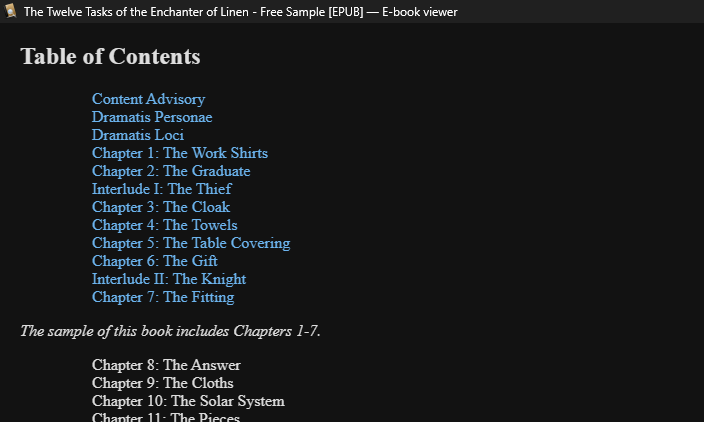
You can add a table of contents in the code editor by going to Tools -> Table of Contents -> Inline Table of Contents. Move the table of contents file around with cursor drag-and-drop in the lefthand bar. If your contents are named something other than the text you wrapped your chapter HTML tags, change them in the actual table of contents file on lefthand bar first.
I also figured out how to do this for my free sample, which I was very smug about! (The Chapters 8-26 part uses the “unordered list” tag.)
Conclusion (the backmatter of this post)
Checking your ebook in something that isn’t Calibre is a must (don’t forget to check the backmatter!)
I frontloaded all my unsolicited advice at the beginning of the post, so all that’s left is to wish you luck and recommend searching things with “reddit” at the end if you need help. (You could actually ask for help on StackExchange or Reddit, but all of this was less intimidating to me than figuring out Reddit subreddit minimum-entry karma).
It looks so cool when you’re done and looking at your completed EPUB in an ebook viewer that puts everything in a beautiful readable font. So cool, especially because you know you did all of it and understand almost everything happening under the hood for every single paragraph noindent. I can’t believe I’m saying this, but I’m excited to do it again.
Leave a Reply